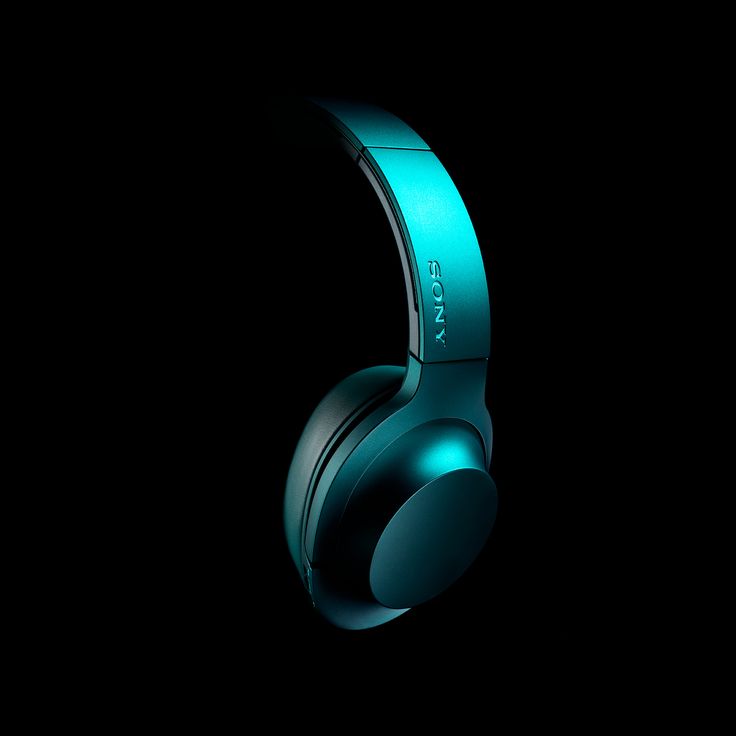

Issue Pairing (Connecting) Sony Bluetooth Wireless Headphones to Another Device
If your Sony Bluetooth wireless headphones won’t connect to another device (phone, tablet, computer, etc.), follow the simplified steps below to enter pairing mode and establish a Bluetooth connection.
Before You Start
✔ Place both devices within 1 meter (3 ft) of each other. (Help Guide)
✔ Make sure both have enough battery — low power can prevent pairing. (Sony India)
✔ If the headphones were paired with another device previously, turn off that device’s Bluetooth or “Forget” the headphones from its Bluetooth list. (Sony India)
How to Pair Sony Bluetooth Headphones
1. Enter Bluetooth Pairing Mode
Most Sony Bluetooth headphones enter pairing mode automatically the first time you turn them on. For a new connection (second device or after previously paired devices):
Turn off your headphones if currently on.
Press and hold the Power button for about 5–7 seconds until the indicator light flashes rapidly (or you hear voice guidance saying “Bluetooth pairing”).
2. Activate Bluetooth on Your Device
Go to Settings → Bluetooth on the device you want to connect (phone, tablet, laptop, etc.).
Make sure Bluetooth is turned ON.
Look for your Sony headphones in the list of available devices and tap to connect. (Sony UK)
3. Complete the Pairing
Select the Sony headphone model name from the Bluetooth list.
Some devices may ask for a Bluetooth passcode — if so, enter 0000. (Help Guide)
Wait for the connection confirmation (indicator light may turn solid or you’ll hear a confirmation tone). (Sony UK)
Notes & Troubleshooting
If Pairing Fails
✔ Restart both devices and try again. (Sony India)
✔ Delete old Bluetooth pairings on your phone or computer and reconnect. (Sony India)
✔ Bring the devices closer together (within 1 m). (Help Guide)
✔ Make sure the headphones aren’t already connected to another device. (Sony India)
Additional Tips
Some Sony models support multipoint connectivity (connect to two devices simultaneously) — check your manual or Sony | Headphones Connect app for support and switching devices. (Sony)
If the headphone’s Bluetooth settings still don’t show up, you may need to reset or initialize the headphones — this clears all saved pairing data. (Sony India)
Summary
Enter pairing mode on your Sony headphones (long-press Power or Bluetooth button).
Enable Bluetooth on the target device.
Select the headphone model from the Bluetooth list.
Enter passcode 0000 if prompted.
Once connected successfully, your Sony headphones will remember the device and reconnect automatically in the future. (Sony UK)